Getting Started
Install TextGO, grant required permissions, and create your first shortcut.
System Requirements
macOS
- macOS 11 or higher
- Requires Accessibility permission
Windows
- Windows 10 or higher
- 64-bit operating system
Download and Installation
- Visit the GitHub Releases page
- Download the package for your system:
- macOS (Apple Silicon):
TextGO_x.x.x_aarch64.dmg - macOS (Intel):
TextGO_x.x.x_x64.dmg - Windows:
TextGO_x.x.x_x64-setup.exe
- macOS (Apple Silicon):
Permission Settings
macOS
On macOS, TextGO needs the Accessibility permission to read selected text and simulate keyboard input.
Setup steps:
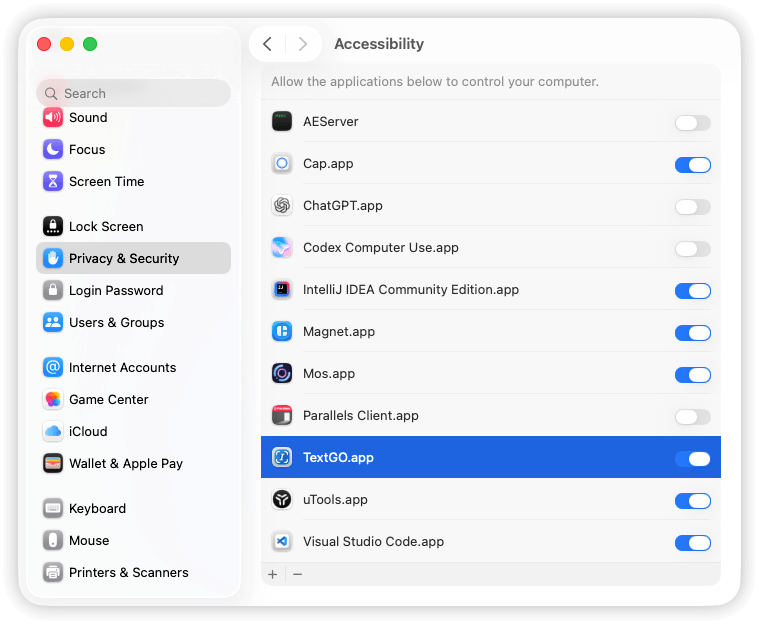
- Open "System Settings" > "Privacy & Security" > "Accessibility"
- Find TextGO and enable it
- If TextGO is not listed, click the "+" button to add it manually
TIP
The system will automatically prompt for authorization when the app is used for the first time.
WARNING
TextGO is not signed. After updating the app on macOS, remove the old TextGO entry from Accessibility and add it again.
Windows
TextGO on Windows requires no additional permissions.
First Launch
Start the App
- macOS: Launch from Launchpad or Applications folder
- Windows: Launch from Start menu or desktop shortcut
Menu Bar or System Tray
After launch, the app icon appears in the macOS menu bar or Windows system tray. The menu provides:
- Open TextGO
- Manage Shortcuts
- View History
- Settings...
- Quit
Basic Usage
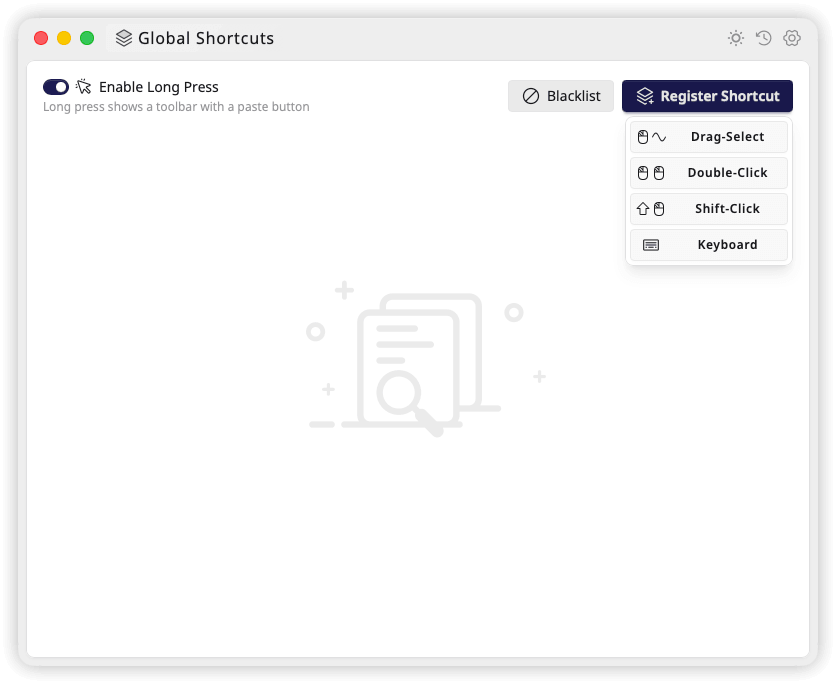
- Open the main window
- Click Register Shortcut
- Select Double-Click or Drag-Select
- Keep the default Toolbar Mode
- Click + in the rules list to add a rule
- Select recognition type and execution action
- Click Confirm to save
Execution Modes
- Quiet Mode: Runs an action immediately after text selection; ideal for simple conversions
- Toolbar Mode: Shows a floating toolbar for choosing from multiple actions
Output Modes
- Replace: Replaces the selected text with the result
- Popup: Shows the result for further editing or copying
- No visual output: Leaves both options unselected; the result can still be copied to the clipboard
Available output options depend on the action. AI actions always open a popup, while actions such as web search, copy, cut, and paste do not return text results.
After the setup above, double-click or drag to select text and choose an action from the floating toolbar. You can also register Triple-Click, Shift-Click, or a keyboard shortcut; see Register Shortcuts.
Rules with "Save result to history" enabled store their results in the history window:
Settings Overview
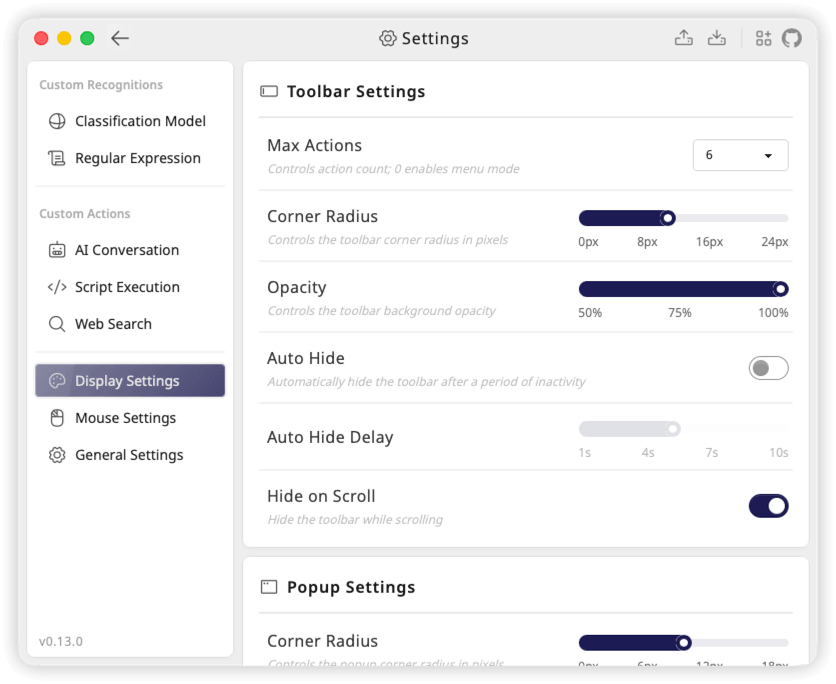
The settings pages group related options:
- Custom Recognitions: Manage classification models, regular expressions, and JavaScript recognition scripts
- Custom Actions: Configure AI conversations, script execution, and web searches
- Display Settings: Adjust toolbar size, position and offsets, hiding behavior, and popup word wrap
- Mouse Settings: Configure text selection, cursor behavior, and long-press triggers
- General Settings: Set the language, theme, history retention, behavior, and permissions
The buttons in the upper right corner of Settings import or export all settings, and the app restarts after a successful import.
Click the version number in the lower left corner to check for updates and install a newer version.
Get Help
- Check the FAQ
- Report a problem on GitHub Issues