Web Search
Custom web search actions open a search engine or website with the selected text.
Feature Overview
Web search actions can:
- Specify search engines or target websites
- Use the default browser or a specific browser
- Open multiple URLs with one action
- Insert selected text or clipboard text into URLs
Create a Search Action
Step 1: Access Search Configuration
- Open "Settings" > "Web Search"
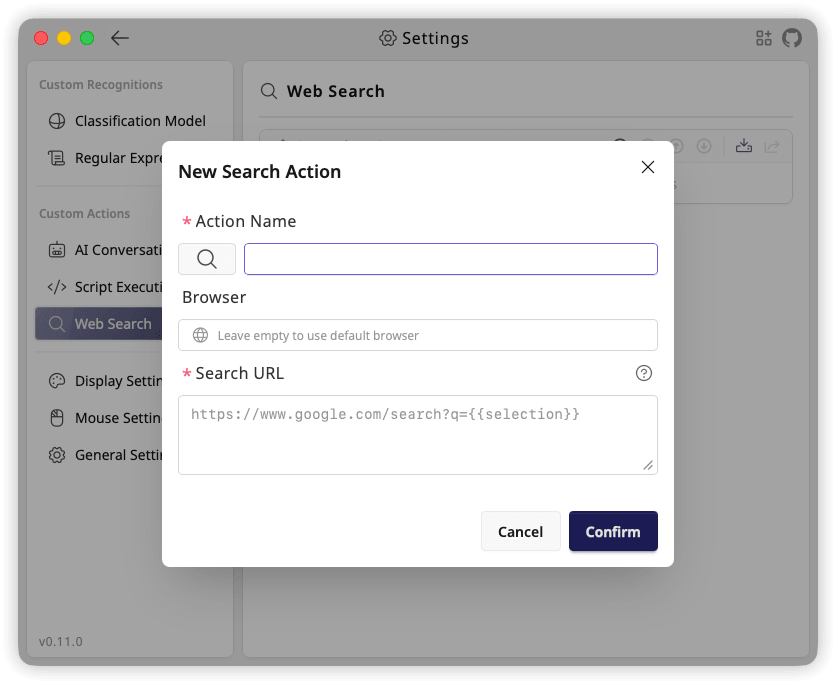
- Click the "+" button to open the "New Search Action" dialog
Step 2: Basic Information
Action Name (Required)
- Identifies the search action
- Use the search engine or website name
Action Icon (Optional)
- Click the current action icon to open the icon selector
- Select from "Built-in Icons" or use "Upload Custom SVG"
Step 3: Configure Browser
Browser (Optional)
Choose a browser for search results. Leave empty to use default browser.
Step 4: Configure Search URL
Search URL (Required)
Enter one URL per line. Each execution opens all non-empty lines; blank lines are ignored.
Available placeholders:
- {{selection}}: Selected text
- {{clipboard}}: Clipboard text read when the action runs
TextGO trims and URL-encodes each text value before replacing every occurrence of its placeholder. Both placeholders can appear in the same URL or be reused across multiple lines.
For example, search selected text on Google and GitHub together:
https://www.google.com/search?q={{selection}}
https://github.com/search?q={{selection}}
To search clipboard content instead, use a template such as https://www.google.com/search?q=. The action still needs a shortcut or text-selection trigger.
Use a Search Action
After creating a search action, add it to a shortcut rule:
- Open "Global Shortcuts"
- Add a new rule
- Select the search action in "Execute Action"
- Save the rule
Common Templates
Google:
https://www.google.com/search?q={{selection}}

Bing:
https://www.bing.com/search?q={{selection}}

DuckDuckGo:
https://duckduckgo.com/?q={{selection}}

Baidu:
https://www.baidu.com/s?wd={{selection}}

Bing Translate:
https://www.bing.com/translator?text={{selection}}

Wikipedia:
https://en.wikipedia.org/wiki/{{selection}}

YouTube:
https://www.youtube.com/results?search_query={{selection}}

GitHub:
https://github.com/search?q={{selection}}

Stack Overflow:
https://stackoverflow.com/search?q={{selection}}