Register Shortcuts
TextGO supports drag-select, double-click, triple-click, shift-click, and keyboard triggers. Each trigger has its own rules.
Add Shortcuts
Step 1: Access Shortcut Settings
- Click the TextGO icon in the macOS menu bar or Windows system tray
- Select "Manage Shortcuts"
- Click the "Register Shortcut" button in the upper right corner
Step 2: Select Shortcut Type
Choose a shortcut type from the dropdown list:
- Drag-Select
- Double-Click
- Triple-Click
- Shift-Click
- Keyboard
Mouse triggers use Toolbar Mode by default, while keyboard shortcuts use Quiet Mode by default. You can switch either mode after registration.
Registered mouse triggers no longer appear in the menu, and keyboard combinations cannot be registered twice. Once Triple-Click is registered, double-click waits about 0.5 seconds to distinguish a possible third click. A triple-click does not run the double-click rules first. Without Triple-Click registered, double-click has no such delay.
Step 3: Add Rules
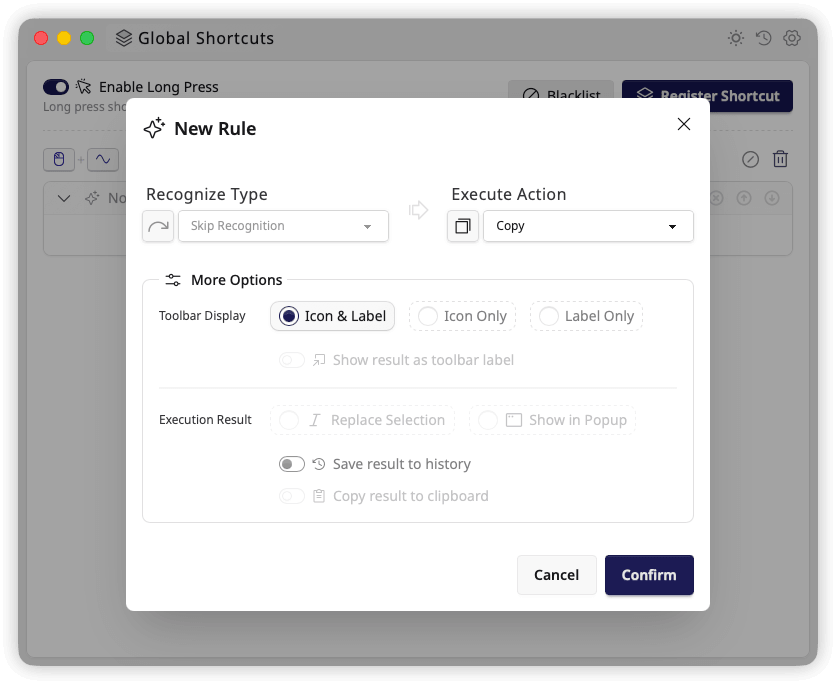
In the rule list for the shortcut, click + to add a rule and configure the following:
1. Recognition Type
Choose a recognition type:
Skip Recognition
Matches all text without recognition.
Built-in Types
- General: Common types such as email addresses, URLs, and paths
- Text Case: Naming formats such as camelCase and snake_case
- Natural Language: English, Chinese, Japanese, Korean, Russian, French, German, Spanish, Portuguese, and Arabic; recognition runs locally
- Programming Language: Code such as JavaScript and Python
Custom Types
- Regular Expression: Match specific text using custom regular expressions
- Classification Model: Classify text using trained machine learning models
- JavaScript: Use a script to check selected text and its source application
2. Execute Action
Select the action to execute after text recognition:
Built-in Actions
- Copy, Cut, and Paste: Perform clipboard operations
- General: Common operations such as opening links and files
- Convert Case: Convert between naming formats such as camelCase and snake_case
- Text Processing: Operations such as trimming spaces
Custom Actions
- Web Search: Search for selected text on a specified website
- Script Execution: Execute custom JavaScript, Python, Shell, or PowerShell scripts
- AI Conversation: Process text with local or cloud AI models
3. Advanced Options
Toolbar Display
- Choose whether the toolbar shows an icon, a label, or both
- Choose whether the toolbar shows execution results
Execution Result
- Choose the output mode for results
- Replace: Replaces the selected text with the result
- Popup: Shows the result for further editing or copying
- Choose whether to save results to history
- Choose whether to copy results to the clipboard automatically
These options depend on the selected action. AI actions always use a popup. Actions without text results, such as web search, disable Replace, Popup, and automatic copying, but can still save an operation record.
Manage Shortcuts
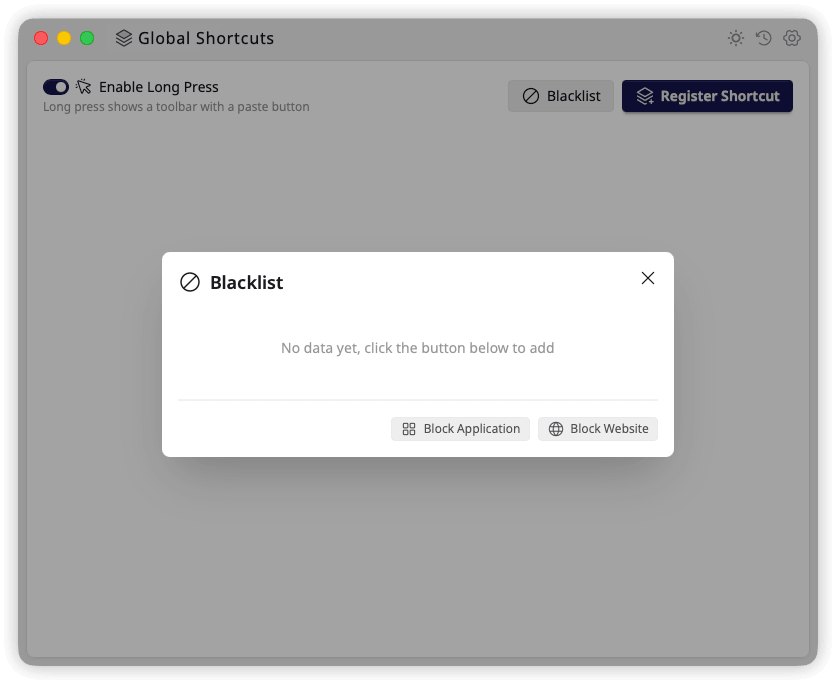
Use the blacklist to prevent TextGO shortcuts from triggering in specified applications or websites:
Enable and Disable
Click "Disable Shortcut" beside a shortcut group to pause it and collapse its rules. Click "Restore Shortcut" to enable it and expand the list again. Disabling preserves the rules and releases a keyboard shortcut's registered key combination.
Use the arrow at the left of a rule list's header to collapse or expand it separately. This does not change whether the shortcut is enabled.
Copy a Shortcut
Click "Copy Shortcut" beside an existing group, then choose an unregistered mouse trigger or record a new keyboard combination.
The new shortcut copies all source rules, their order, and their rule options; the two groups can then be edited independently. The new group's mode follows its trigger type: Toolbar Mode for mouse triggers and Quiet Mode for keyboard shortcuts. It does not inherit the source group's mode or disabled state.
Edit Rules
- Click the edit icon beside a rule to change its configuration
- Click rows or their checkboxes to select multiple rules; click again to deselect
- Click the delete icon and confirm to remove all selected rules
Adjust Order
Select one or more rules, then use the up and down arrows to move them together. Their relative order is preserved:
- In Quiet Mode, rules are matched from top to bottom, and only the first matching rule runs
- In Toolbar Mode, all matching actions appear in rule order, with duplicate actions shown only once
Switch Execution Mode
TextGO provides two execution modes: Quiet Mode and Toolbar Mode.
Quiet Mode
When triggered after text selection, the action runs immediately.
Features:
- Fast, uninterrupted workflow
- Well suited to deterministic tasks
- Skips the toolbar; configured popup output may still appear
Use Cases:
- Simple conversions, such as changing naming styles
- Direct actions, such as opening URLs or copying text
- Repeated quick actions
Toolbar Mode
When triggered after text selection, a floating toolbar appears for choosing an action.
Features:
- Intuitive visual interface
- Offers multiple processing methods
- Can preview supported action results as toolbar labels
Use Cases:
- The same text may need different processing methods
- You want to preview results before choosing
- You are unsure which action to use
Configure toolbar size, position and offsets, maximum action count, and hiding behavior under "Settings" > "Display Settings". See Toolbar Settings.