Write JavaScript Recognition Scripts
TextGO can use JavaScript scripts to decide whether selected text matches a custom type.
What Is a JavaScript Recognition Script?
A recognition script defines a matches function that returns true or false. It can check selected text and its source application before a rule runs.
To transform text after matching, create a JavaScript action script.
When to Use JavaScript Recognition Scripts
Suitable Scenarios for Scripts
✅ Multiple Matching Conditions
- Combine checks for text content, length, and format
- Express rules that are difficult to maintain in a single regular expression
✅ Structured Text
- Parse JSON and check its fields
- Validate values as well as text format
✅ Application-Specific Matching
- Match text selected in a specific application
- Combine the source application with text conditions
Unsuitable Scenarios for Scripts
❌ Simple and Clear Patterns
- Patterns that a regular expression can describe directly
- Fixed formats that require no additional conditions
❌ Patterns That Need Learning
- No clear fixed rules
- Characteristics must be learned from samples; use a classification model
Create a JavaScript Recognition Script
Step 1: Access Script Management
- Open "Settings" > "JavaScript"
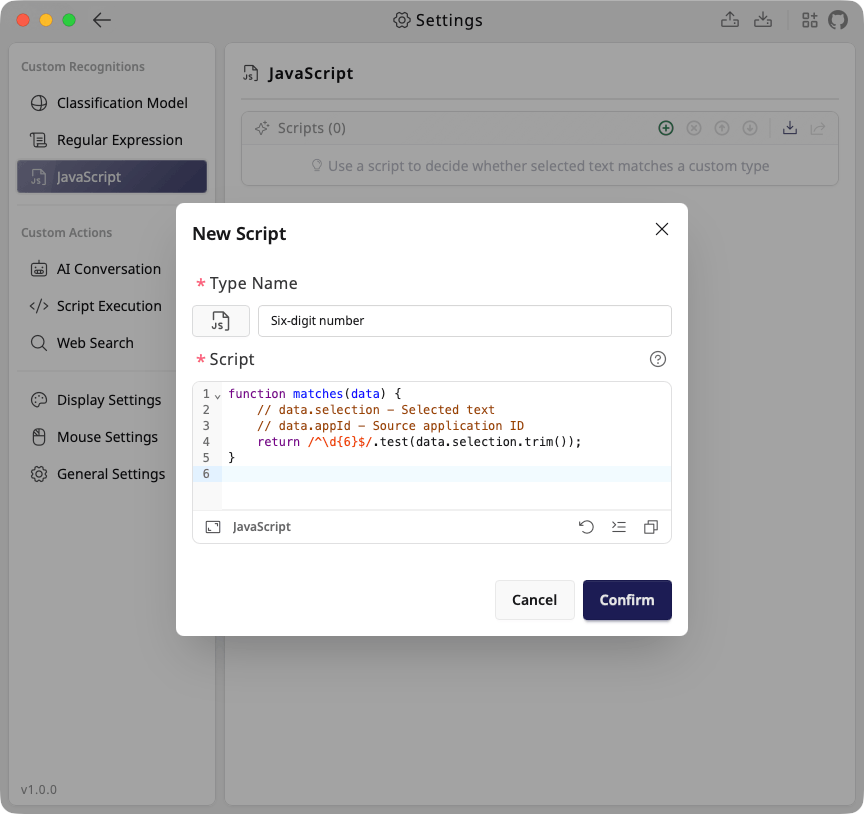
- Click the "+" button to open the "New Script" dialog
Step 2: Basic Information
Type Name (Required)
- Identifies the script
- Use a descriptive name
Type Icon (Optional)
- Click the current type icon to open the icon selector
- Select from "Built-in Icons" or use "Upload Custom SVG"
Step 3: Write the Script
Script (Required)
JavaScript recognition scripts must contain a matches function:
function matches(data) {
  // data.selection - Selected text
  // data.appId - Source application ID

  // Return whether the text matches
  return false;
}
Parameters:
data: Input objectdata.selection: Selected text contentdata.appId: Source application's bundle ID on macOS, or its executable path on Windows; an empty string when the identifier is unavailable
The source application is captured when the shortcut is triggered.
Return value:
true: The rule matchesfalse: The rule does not match- Scripts may define
matchesas anasyncfunction - Other return types, such as
1or"true", and script errors count as no match; remaining rules continue to be checked
Recognition scripts run in the app's WebView. Custom Node.js or Deno paths under "Script Execution Options" do not change this runtime.
Use a JavaScript Recognition Script
Saved scripts appear in the recognition type list:
- Open "Global Shortcuts"
- Add a new rule
- Select the saved script under "JavaScript" in "Recognize Type"
- Configure an action and save
JavaScript Recognition Script Examples
Example 1: Six-Digit Number
Match a six-digit number after removing leading and trailing spaces:
function matches(data) {
  return /^\d{6}$/.test(data.selection.trim());
}
Example 2: Order JSON
Match JSON containing a non-empty order ID and a positive amount:
function matches(data) {
  try {
    const order = JSON.parse(data.selection);
    return (
      typeof order?.orderId === 'string' &&
      order.orderId.trim().length > 0 &&
      typeof order.amount === 'number' &&
      order.amount > 0
    );
  } catch {
    return false;
  }
}
For example, {"orderId":"ORD-1024","amount":99} matches, while invalid JSON or an amount of 0 does not.
Example 3: Numbers Selected in TextEdit
This example applies to macOS and matches a six-digit number selected in TextEdit:
function matches(data) {
  return data.appId === 'com.apple.TextEdit' && /^\d{6}$/.test(data.selection.trim());
}
On Windows, check the executable path instead. For example, data.appId.toLowerCase().endsWith('\\notepad.exe') restricts matching to Notepad. An unavailable application identifier does not match either check.