Train Classification Models
TextGO can train machine learning models to recognize custom text types.
What Is a Classification Model?
TextGO uses TensorFlow.js to train and run models locally in the app's WebView:
- No Backend Required: Training and inference run locally
- Privacy and Security: Data never leaves your device
- Real-time Inference: Loaded models recognize text quickly
- Lightweight: Models are small and load quickly
When to Use Classification Models
Suitable Scenarios for Models
✅ Complex Text Patterns
- Patterns that are difficult to describe with regular expressions
- Text with variations but consistent overall characteristics
✅ Sufficient Training Data
- At least 3 unique, non-empty positive samples; more diverse samples generally improve results
- Samples should cover main variations
✅ Some Misclassification Is Acceptable
- Workflows can tolerate occasional misclassification
- Suitable for fuzzy matching
Unsuitable Scenarios for Models
❌ Simple and Precise Patterns
- Patterns that regular expressions can describe precisely
- Phone numbers, ID numbers, and other fixed formats
❌ Insufficient Training Data
- Fewer than 3 valid unique samples cannot be used for training
- Samples do not cover the main variations
❌ Misclassification Is Unacceptable
- Workflows with strict accuracy requirements
Create a Classification Model
Step 1: Access Model Management
- Open "Settings" > "Classification Model"
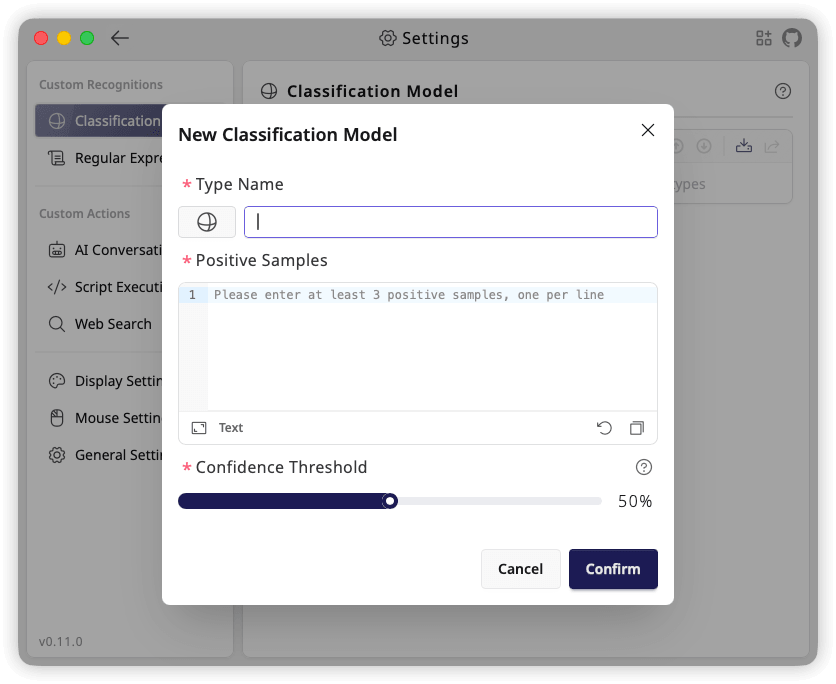
- Click the "+" button to open the "New Classification Model" dialog
Step 2: Basic Information
Fill in the model's basic information:
Type Name (Required)
- Identifies the model
- Use a descriptive name
Type Icon (Optional)
- Click the current type icon to open the icon selector
- Select from "Built-in Icons" or use "Upload Custom SVG"
Step 3: Prepare Training Data
Positive Samples (Required)
Positive samples are key to determining the model's recognition capability.
Data Format:
- Enter one sample per line
- Samples can contain any text
- Blank lines are ignored and duplicate samples are removed
Sample Quality Requirements:
- ✅ Samples should cover main text variations
- ✅ Samples should include typical characteristics of this text type
- ✅ Remove irrelevant content from samples
- ❌ Avoid providing identical samples
- ❌ Avoid including erroneous or invalid samples
Step 4: Configure Parameters
Basic Parameters
Confidence Threshold (Required, 1%–99%)
- Default: 50%
- Text with similarity greater than or equal to this threshold will be recognized as this type
- Adjust as needed:
- Increase threshold → Stricter matching, reduces false positives
- Decrease threshold → Looser matching, increases recognition rate
Use a Classification Model
Trained models appear in the recognition type list:
- Open "Global Shortcuts"
- Add a new rule
- Select the trained model in "Recognize Type"
- Configure an action and save