Run Shell Scripts
Use Shell or PowerShell scripts for file operations, system commands, and text processing.
Feature Overview
Shell and PowerShell scripts can:
- Process text with shell commands
- Leverage system utilities and command-line tools
- Execute platform-specific operations
Runtime Environment
TextGO provides the script type appropriate for the current operating system:
- macOS: Shell scripts run with
sh - Windows: PowerShell scripts run with
powershell
Create a Shell Script
Step 1: Access Script Management
- Open "Settings" > "Script Execution"
- Click the "+" button to open the "New Script" dialog
Step 2: Basic Information
Action Name (Required)
- Identifies the script
- Use a descriptive name
Action Icon (Optional)
- Click the current action icon to open the icon selector
- Select from "Built-in Icons" or use "Upload Custom SVG"
Script Type (Required)
- Select Shell on macOS or PowerShell on Windows
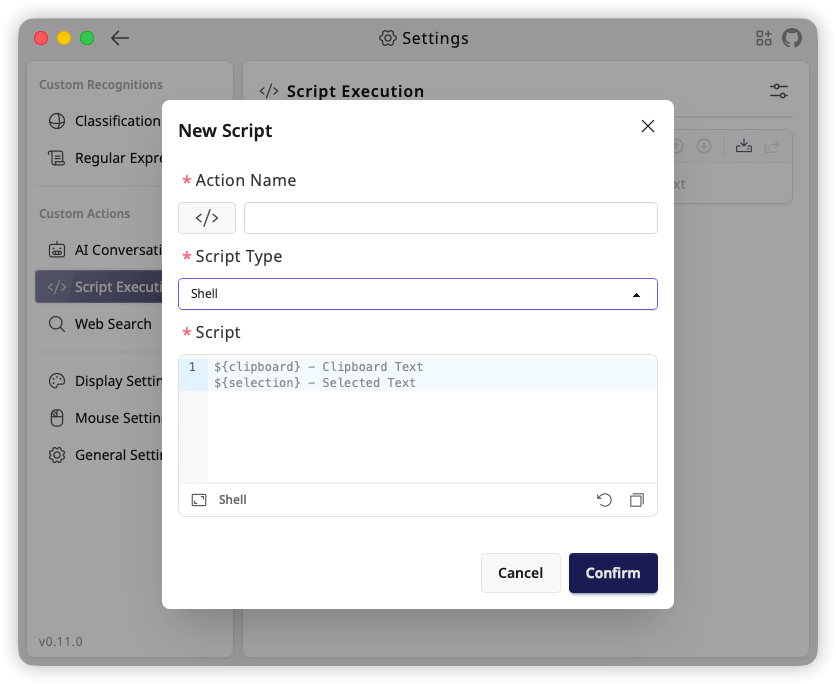
Step 3: Write Your Script
Script (Required)
Shell and PowerShell scripts receive predefined variables.
Available variables:
${clipboard}: Clipboard content${selection}: Selected text${datetime}: Execution time in ISO 8601 format
Output:
- Standard output (
stdout) becomes the processing result after trimming leading and trailing whitespace - Send debugging messages to standard error (
stderr) to keep them out of the result - Use
echoor a similar command to output processed text
Use a Shell Script
After creating a script, add it to a shortcut rule:
- Open "Global Shortcuts"
- Add a new rule
- Select the Shell or PowerShell script in "Execute Action"
- Save the rule