Run JavaScript Scripts
Use JavaScript for custom text transformations, WebView APIs, and keyboard automation.
Feature Overview
JavaScript scripts can:
- Process selected text and clipboard content
- Use WebView helpers or a configured Node.js or Deno runtime
- Simulate keys and cross-platform keyboard shortcuts
Runtime Environment
JavaScript runs in the WebView by default or in the configured Node.js/Deno runtime. Scripts using _keyboard.press() automatically switch back to the WebView.
If you configure a custom Node.js or Deno executable, TextGO uses that runtime instead. Node.js takes precedence when both paths are configured. Without a custom runtime, TextGO tries system Node.js and then Deno only if WebView execution fails.
Available environments:
- WebView: Default environment; standard WebView APIs such as
fetchremain available, and TextGO adds_and_keyboard - Node.js: Used when its custom runtime path is configured
- Deno: Used when its custom runtime path is configured
- System fallback: If WebView execution fails and no custom runtime is configured, tries Node.js and then Deno
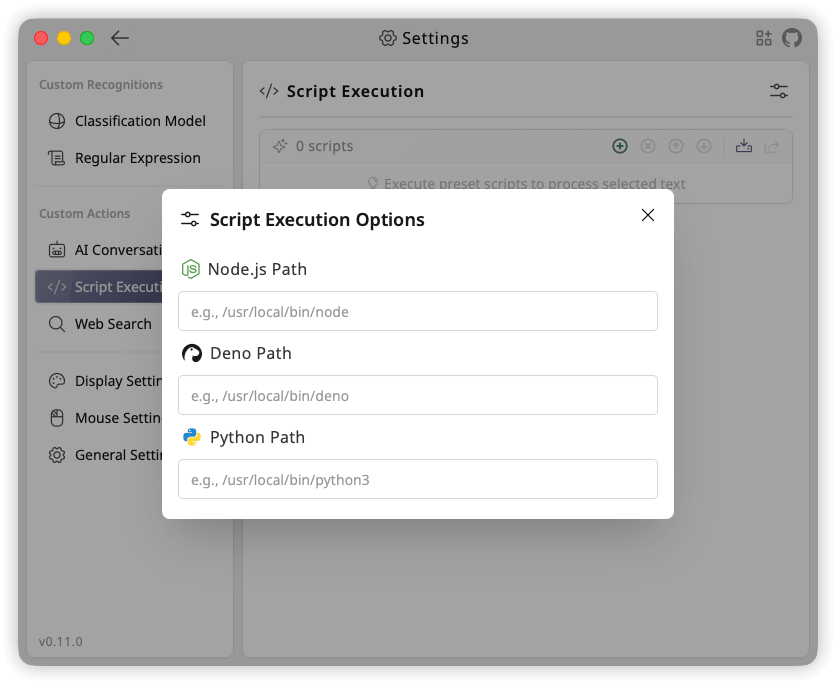
Configure "Node.js Path" and "Deno Path" under "Script Execution Options":
Create a JavaScript Script
Step 1: Access Script Management
- Open "Settings" > "Script Execution"
- Click the "+" button to open the "New Script" dialog
Step 2: Basic Information
Action Name (Required)
- Identifies the script
- Use a descriptive name
Action Icon (Optional)
- Click the current action icon to open the icon selector
- Select from "Built-in Icons" or use "Upload Custom SVG"
Script Type (Required)
- Select JavaScript
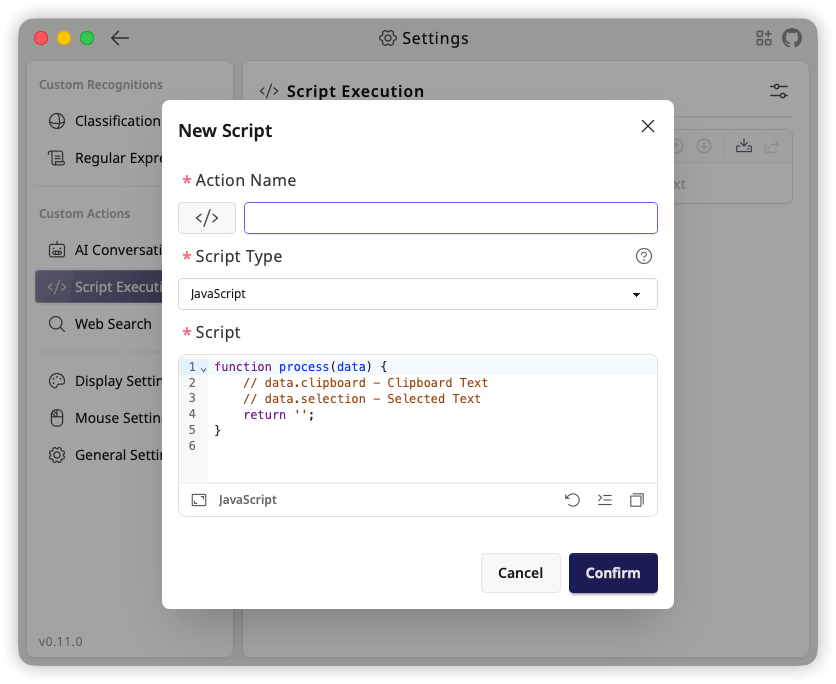
Step 3: Write the Script
Script (Required)
JavaScript scripts must contain a process function:
function process(data) {
  // data.clipboard - Clipboard content
  // data.selection - Selected text
  // data.datetime - Execution time in ISO 8601 format

  // Return processed text
  return '';
}
Parameters:
data: Input objectdata.clipboard: Current clipboard text contentdata.selection: Selected text contentdata.datetime: Execution time in ISO 8601 format
Return value:
- Strings are returned directly; other serializable values are converted to JSON
- WebView scripts may define
processas anasyncfunction - Can return an empty string
- Leading and trailing spaces and newlines in strings are preserved;
console.log()is for debugging and does not become the return value
WebView APIs
WebView scripts can use these predefined globals:
_: Utility functions fromes-toolkit_keyboard: Keyboard simulation
Simulate Keyboard Input
_keyboard.press() supports a single key or a key with modifiers:
_keyboard.press(key);
_keyboard.press(modifiers, key);key: A single character or a supported key namemodifiers: An array of modifier names
Supported key names include Enter/Return, Tab, Escape/Esc, Space, Backspace, Delete/Del, arrow keys such as ArrowUp, Home, End, PageUp, PageDown, and F1 through F12. Key and modifier names are case-insensitive.
Modifier aliases:
| Modifier | Aliases |
|---|---|
| Command | Meta, Cmd, Command, Super, Win, Windows |
| Control | Control, Ctrl |
| Alt | Alt, Option |
| Shift | Shift |
For cross-platform shortcuts, join one Command alias and one Control alias with Or, in either order. For example, CmdOrCtrl, CommandOrControl, and ControlOrWindows use Command on macOS and Control on Windows.
function process(data) {
  _keyboard.press(['CmdOrCtrl'], 'c');
  return data.selection;
}
TextGO executes multiple calls in order and waits for the keyboard queue before completing the script. A failed key operation fails the script. Because keyboard actions have side effects, these scripts do not generate toolbar previews.
Use a JavaScript Script
After creating a script, add it to a shortcut rule:
- Open "Global Shortcuts"
- Add a new rule
- Select the JavaScript script in "Execute Action"
- Save the rule
JavaScript Script Examples
Example 1: Text Reversal
function process(data) {
  return [...data.selection].reverse().join('');
}
Example 2: Character Count
function process(data) {
  return [...data.selection].length;
}
Example 3: Remove Duplicate Lines
function process(data) {
  const lines = data.selection.split('\n');
  const unique = [...new Set(lines)];
  return unique.join('\n');
}
Example 4: Word Frequency
This example uses the WebView-only _ global provided by es-toolkit.
function process(data) {
  const words = data.selection.toLowerCase().match(/\p{L}+/gu) ?? [];
  return _.countBy(words, (word) => word);
}
Example 5: Save the Current Document
This example uses _keyboard and automatically runs in the WebView.
function process() {
  _keyboard.press(['CmdOrCtrl'], 's');
  return '';
}